"I want to try a few looks before I take the photo." In Chobial, the picture in the viewfinder is developed live with the loaded film. So you see the film before you shoot, and you can change it as often as you like.
Change film with a swipe
Swipe across the picture. The next or the previous film loads. Its name and a short description show for a moment.
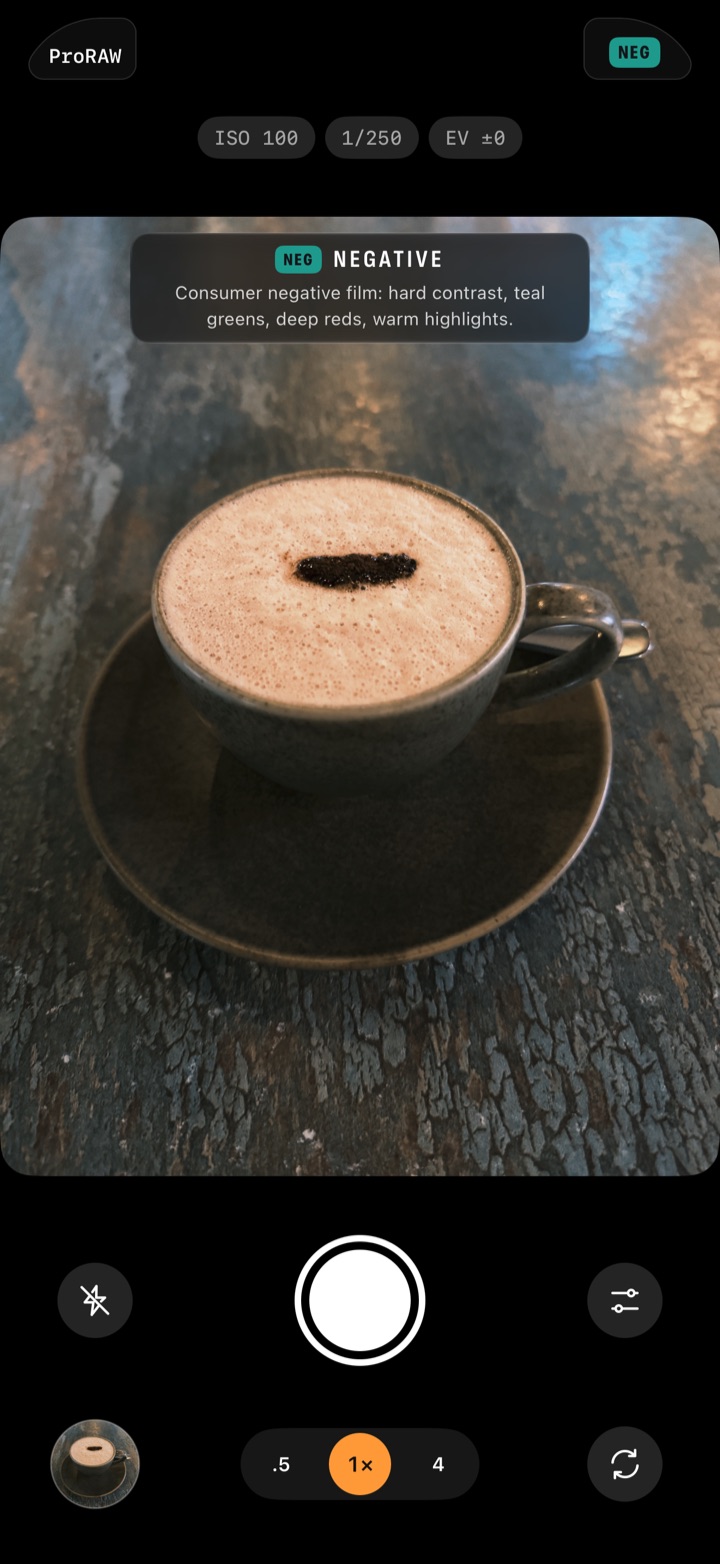
The loaded film's badge is to the right of the Dynamic Island, unless you change it in Settings › Buttons. If neither side of the island shows the film, or your phone has no island, the film's code is at the end of the exposure line instead. On an iPhone with Camera Control, the button turns through the films too.
Pick from every film available
- Tap the film badge, or tap Controls › Film.
- A row of every film opens. Slide the row.
- When the row stops, the film in the middle loads.
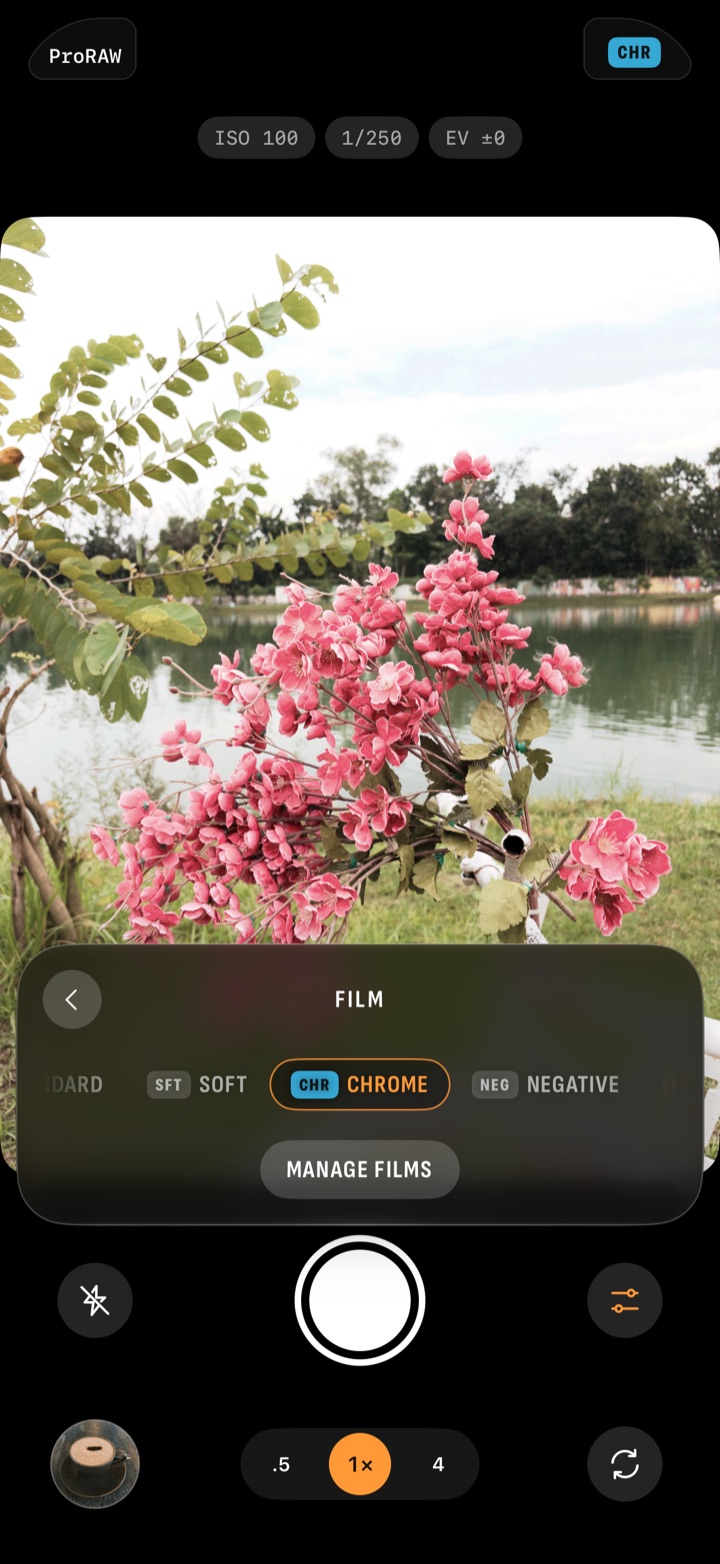
Films you made are in the row too. My Films come first, then Chobial's films. A star keeps a film at the top of the list. In the Films screen, ⇅ sets the order for the row and for Camera Control. Manage Films, under the row, opens the Films screen, where you make, edit and share films.
Peek without the film
You might want to see the plain picture for a second, to check what the film is doing.
- Tap Controls › Film.
- Touch and hold any film's name.
- The film comes off, and the picture says WITHOUT FILM. Let go and the film is back.
If you'd like a plain viewfinder all the time, turn off Controls › Guides › Live Film. NO FILM then shows in the exposure line. Your photos are still developed with the loaded film.
Lock focus and exposure
Touching and holding the picture does something different from the peek. It locks focus and exposure.
- Tap where you want the focus. A frame marks the spot, with a sun beside it. The camera measures the light there too.
- Touch and hold the same spot. AE/AF LOCK shows.
- Tap again to let the lock go. Changing lens or focusing by hand also lets it go.
The hold always locks focus. It locks exposure only when the camera was choosing it. If you set the ISO or the shutter by hand, the badge reads AF LOCK. That means only the focus is locked. If you set both, the exposure stays at your settings. If you set only one, the camera keeps choosing the other one, so the brightness can still change. The exposure help page shows how to set them.
On Android, holding a volume key also locks focus and exposure.
Focus by hand
- Tap Controls › Focus.
- Slide between NEAR and ∞.
- A loupe shows the spot bigger, so you can see when it's sharp.
- Focus peaking draws red lines on the sharp edges.
- Tap Auto to give focus back to the camera.
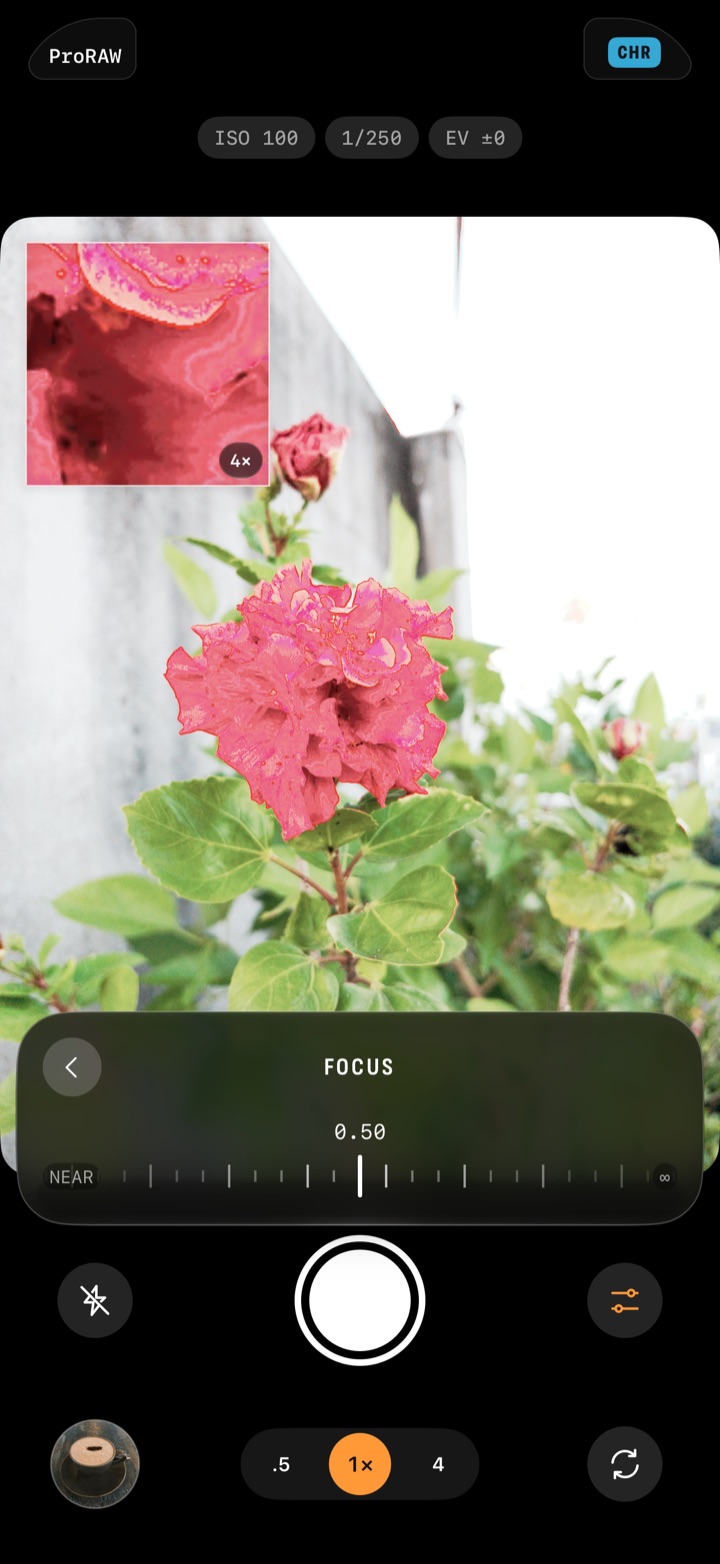
The Focus tile only shows where the lens has manual focus. To turn the red lines off, go to Controls › Guides › Peaking.
Edit later: pick another film
The film you shoot with isn't final. Every photo keeps its original. In the editor, open the Film tool and tap another film. The photo is developed again from its original. Strength turns the film down if it's too strong for that photo.
To see a photo without its film and edits in the editor, touch and hold Compare. To see what each film looks like first, browse the films, such as Chrome and Negative.