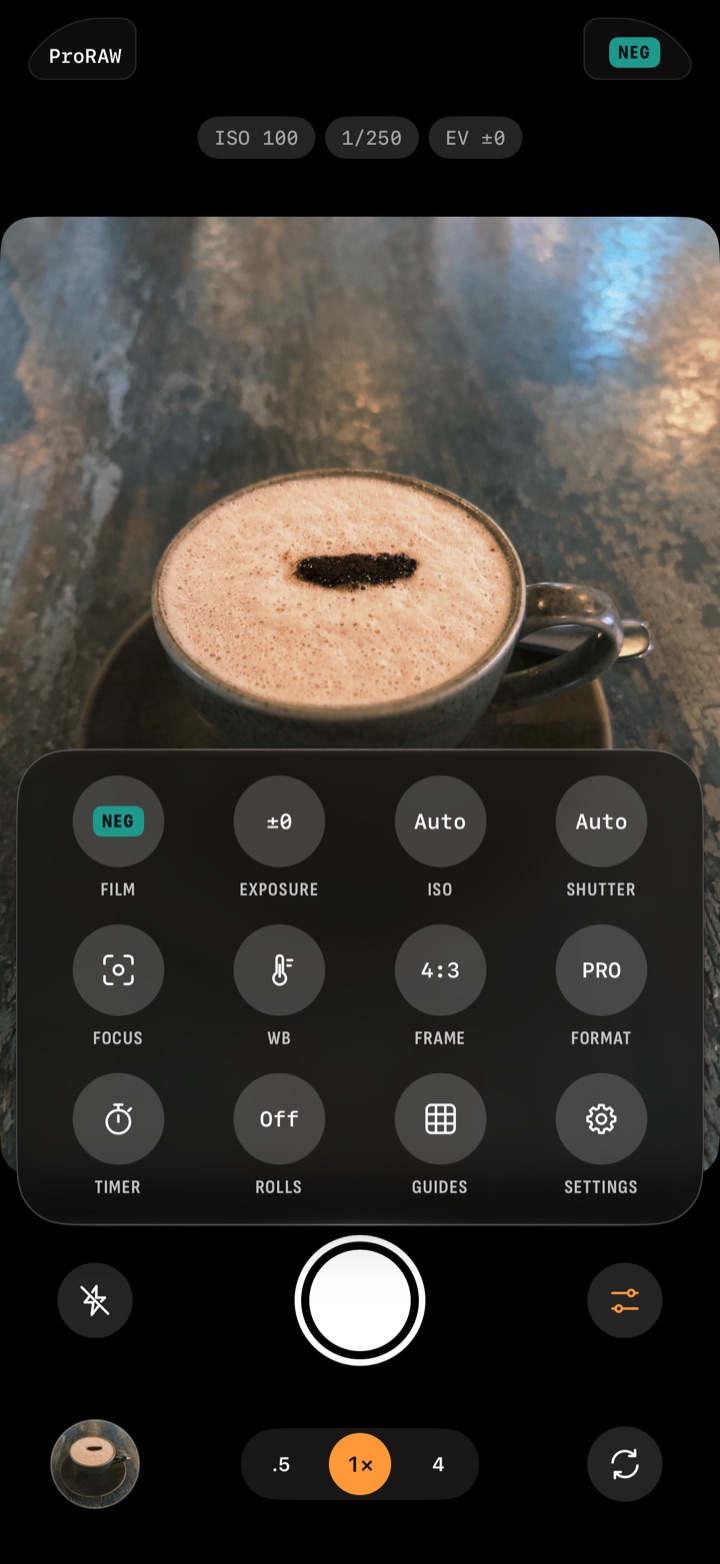
The timer
- Tap Controls › Timer.
- Choose 3 or 10 seconds.
- Tap the shutter. The count runs over the picture, and then the camera takes the photo.
Camera Control and the volume buttons start the timer too. To stop the count, press the shutter or the button again. No photo is taken.
The timer stays set until you change it or close the app.
To reach the timer in one tap, put it on a button. Go to Settings › Buttons (more on that below).
Camera Control and the volume buttons
On an iPhone with Camera Control, click the button to take a picture. The volume buttons take a picture too. When the timer is set, a click starts the count instead.
Camera Control can also change settings while you hold the phone:
- Light-press the button for its controls.
- Light-press twice to choose Film, Exposure, ISO or Shutter.
- Slide your finger on the button to change it.
Films come up in the order you set with ⇅ in the Films screen.
The Apple Watch remote
- Open Chobial on the iPhone and keep it on the screen.
- On the watch, the middle page of Chobial shows the live view, with the film and the exposure.
- Tap the shutter on the watch.
- For a delay, tap Timer Off on the watch. Each tap moves it to the next setting: 3s, 10s, then off again.
Swipe one page to the left for the films, or one page to the right for your recent photos. The watch can't take a photo on its own. The iPhone app needs to be open on screen.
Siri and Shortcuts
Say "Take a photo with Chobial", "Shoot Chrome with Chobial" or "Load Gold in Chobial". In the Shortcuts app, Chobial has two actions: Take Photo and Open Camera.
Lock Screen and Control Center
Chobial's camera can open straight from the Lock Screen.
- In the iPhone's Settings app, go to Camera › Camera Control and choose Chobial.
- On the Lock Screen, click Camera Control. Chobial's camera opens.
This is the same camera. You can swipe for a film and open Controls. The photos join your library the next time you open Chobial.
You can also add the Chobial control to Control Center or to the Lock Screen, in place of the camera or the flashlight. The Loaded Film widget on the Lock Screen shows the film in the camera, and a tap opens it to shoot. The Last Photo widget goes on the Home Screen.
In Chobial, Settings › Lock Screen & Camera Control opens the lesson for all of this.
Which ones are iPhone-only
Camera Control, the Apple Watch remote, and Siri and Shortcuts work only on iPhone. iPad has no Camera Control and no Watch remote.
Chobial for Android is in a closed beta. On Android you have:
- Volume keys: a press takes a picture, or starts the timer when it's set. Hold a volume key to lock focus and exposure.
- Quick Settings tile: it opens the camera, also on the lock screen.
- Lock screen: the camera shortcut, or a double press of the side key, opens it where the phone allows.
- Widgets: Last Photo and Loaded Film go on the Home screen.
- App shortcuts: Take Photo and Films.
You can join the Android beta on the beta page.
Edit later: change the film on any of these photos
Each of these ways shoots with the loaded film, and each photo keeps its original. In the editor, open the Film tool and tap another film. The photo is developed again from its original. The change film help page shows how to change film before you shoot.